Feet
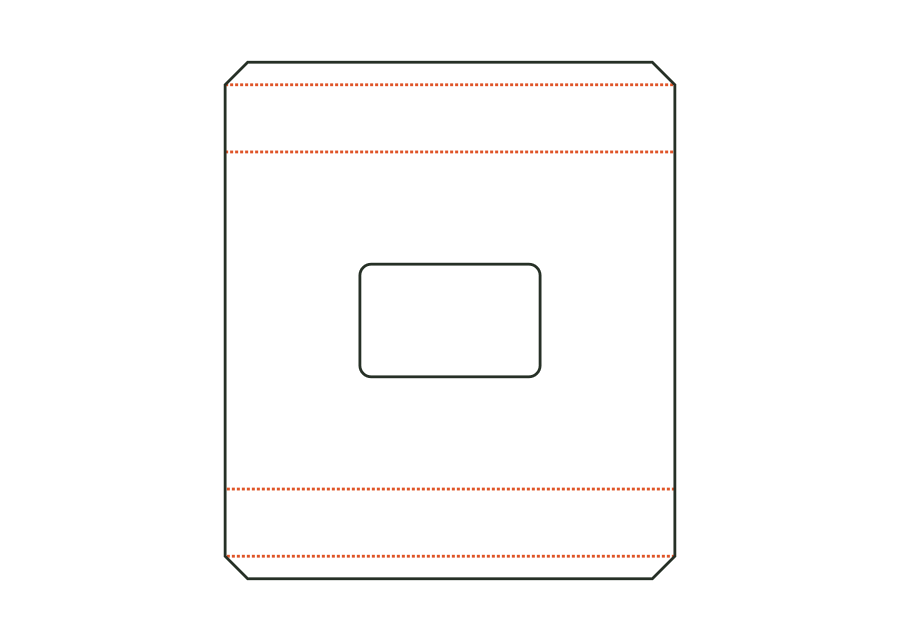
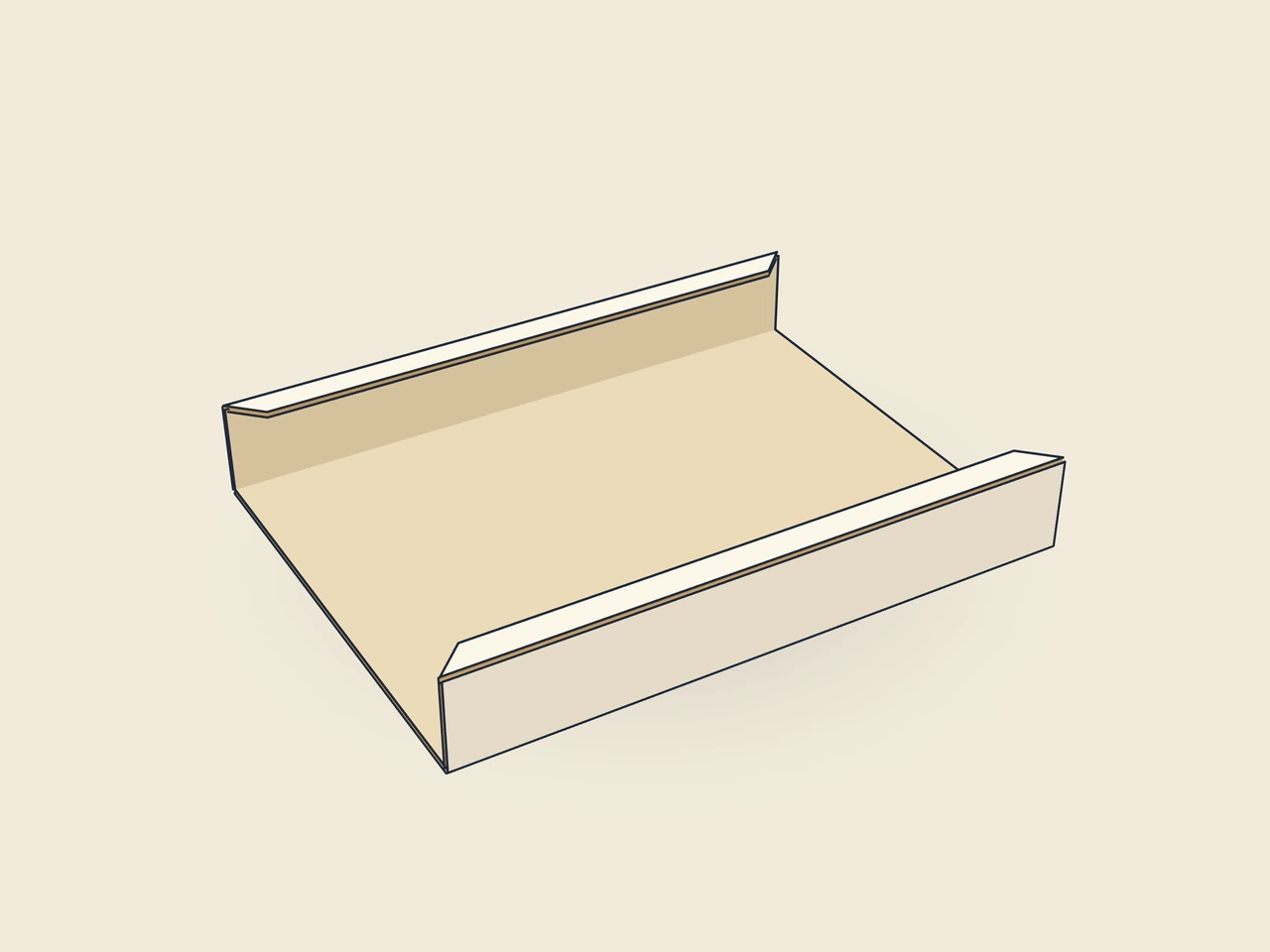
Folded-down feet at the front and rear edges or all four edges; the side feet are shorter to fit between the front and rear feet.
 JetDieline
Folding cartons and inserts / JETDIELINE
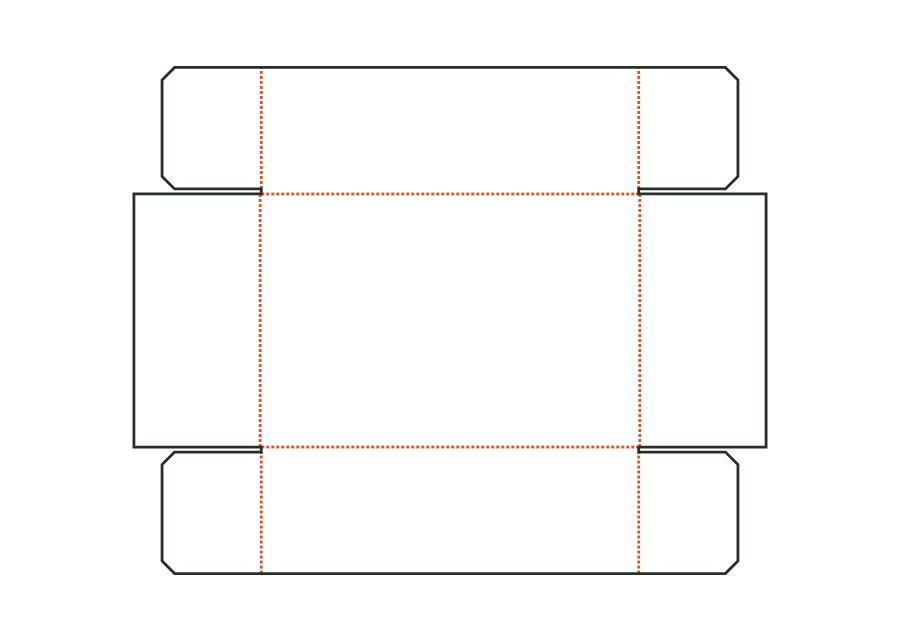
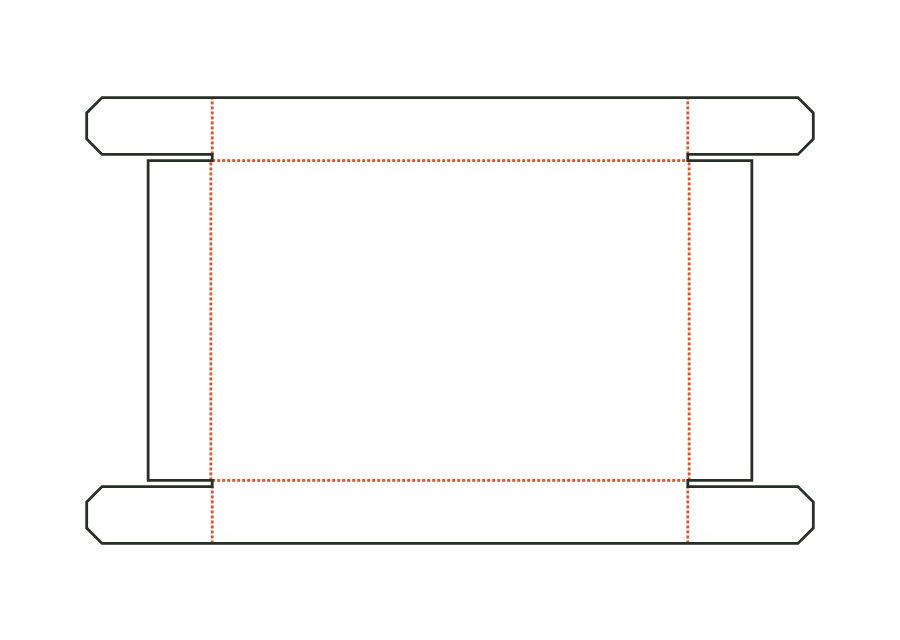
Board insert for a box: platform with a freely positioned product cutout (rectangle, circle or oval) on folded-down feet at two or four edges, optionally with inward-folded foot tabs. Dimensions: insert outside dimensions (box inside dimensions) × platform height.
Drag to rotate
03 / BOX
Simplified display model without material thickness, not to scale.
The 3D view is not available in this browser. The image shows the folded shape.
carton.insert.cutoutA platform with a freely positioned product cutout stands on two or four folded-down feet. Optional foot tabs have ends trimmed at 45°. The insert is placed in the box without gluing.
Fold the feet down at the creases and fold the foot tabs inwards; place the insert in the box and put the product into the cutout. Without gluing.
Test fit, folding and closure on a sample made from the intended material. Confirm material thickness, grain direction and production steps with your printer.
Outside dimension
These dimensions describe the preview, not a fixed packaging size. The app recalculates the dieline for your own dimensions.
Folded-down feet at the front and rear edges or all four edges; the side feet are shorter to fit between the front and rear feet.
Width of the inward-folded tab at the bottom of each foot (0 = none); ends trimmed at 45°.
Rectangle with corner radius, circle (diameter = cutout width) or oval.
Width of the individual product cutout; also the diameter for the circle shape. At the selected position, at least a 5 mm bridge remains to the platform edge.
Height of the individual product cutout; follows cutout width for the circle shape. At the selected position, at least a 5 mm bridge remains to the platform edge.
The insert must fit in an existing box. Its outside dimensions describe the space it needs; height describes platform height. This template does not support inside or crease-to-crease dimensions. Derive inputs from the box's usable inside space and check clearance and insertion using a sample rather than equating both dimension sets without checking.
Two feet stand at the front and rear edges. Four feet add side supports; these are shortened to fit between the other feet. Foot tabs fold inwards and need no gluing. Geometry checks their space requirements. This does not promise a load capacity for the product; test it with the target material.
Choose the circle shape and enter the diameter as cutout width. Cutout height follows width in this mode. For an oval, width and height remain separate. A rectangle adds a corner radius. Choose the shape based on the product's contact area; a geometrically fitting cutout does not yet confirm secure retention.
Find the right packaging shape and fit it to your product
Design the artwork directly on the real dieline
Spot problems before you pass on files
Files your printer can trace
Folding carton with a side seam and glued closures at the top and bottom (Seal End) instead of tuck flaps: outer flap on the front, inner flap on the back, dust flaps on the sides. For pharmaceutical and food products; opened by tearing.
carton.sealendView templateHorizontal box for facial tissues and handkerchiefs: body with side seam, glued end closures (Seal End), perforated dispensing opening in the top (oblong slot or rectangle) with thumb notch. Dimensions: length × top width × height.
carton.tissueView templateLower part of the telescopic box made from folding carton board: base with four walls and glued corner flaps, same design as the corrugated telescopic box, for smaller gift and chocolate boxes.
carton.telescope.baseView templateTelescopic lid made from folding carton board in the same design as the base; dimensions from the base's outside dimension plus clearance on each side.
carton.telescope.lidView templateWith JetDieline, choose a suitable template, adjust its size, and place text, logos, and images directly on your packaging.
Try your dimensions