Templates and dimensions
Find the right packaging shape and fit it to your product
 JetDieline
Labels and bands / JETDIELINE
Circular label; the diameter is both width and height.
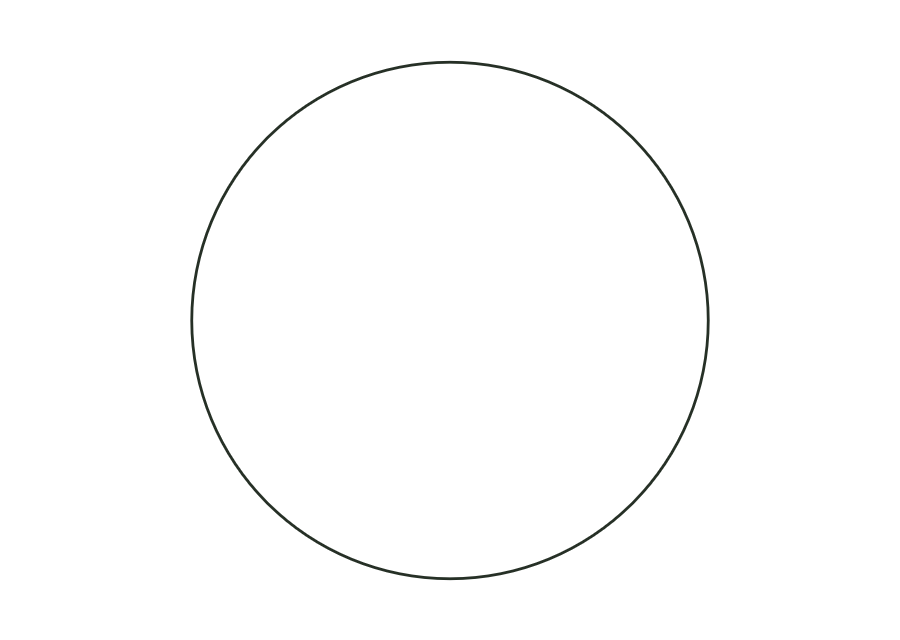
label.roundThe circular shape consists of a closed cut outline and one panel. Width and height must have the same diameter. A separate corner radius is not allowed for the circle. The construction creates no crease; safety zone and bleed around the circle are derived from the production profile.
Peel the label from the backing material and apply it from the center outward without bubbles.
No fixed grain direction; check parallel to the body axis on curved bodies
Test fit, folding and closure on a sample made from the intended material. Confirm material thickness, grain direction and production steps with your printer.
Outside dimension
These dimensions describe the preview, not a fixed packaging size. The app recalculates the dieline for your own dimensions.
Enter the diameter as width and height. Both values must be equal; in the example they are each 50 mm. The corner radius remains 0. The diameter describes the cut edge; bleed and safety zone additionally belong to the production profile.
No. The round template explicitly checks that width equals height and stops if values differ. Choose the oval label for an elliptical outline. This keeps the template ID and geometric structure traceable in the report too.
Use the label sheet template with round label shape and equal values for label width and label height. Rows, columns, and spacing come from its sheet dimension model. The single circular label does not itself calculate an arrangement of multiple labels.
Find the right packaging shape and fit it to your product
Design the artwork directly on the real dieline
See problems before you pass on files
Files your printer can follow
Wrap label for cylindrical bottles and cans: length from circumference (or diameter) plus overlap; the front viewing area and overlap are marked as annotation lines.
label.wrapView templateNeck label for a conical bottle neck as a conical blank from top and bottom diameter and height; as a closed ring with overlap or a partial label.
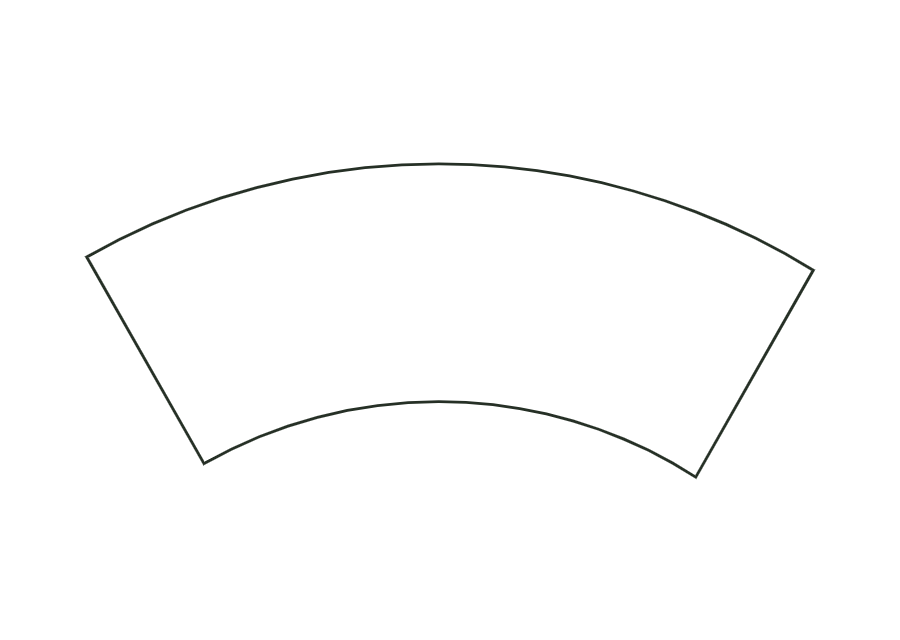
label.neckView templateWrap label for tapered cups and cans as a cone blank (annular sector) with a constant-width glue strip.
label.tapered.wrapView templateWith JetDieline, choose a suitable template, adjust its size, and place text, logos, and images directly on your packaging.
Try your dimensions Download on the Mac App Store